NL RECONCILIATION
Introduction
Sage 200 does not perform reconciliation of nominal accounts. NL Reconciliation Excelerator is introduced to reconcile large volumes of transactions such as credit card receipts, payroll expenses or other control accounts.
Key Features include:
- Efficiently handles large volume of data for reconciliation.
- Allow users to create new nominal reconciliations or adjust existing reconciled sessions as required.
- Downloads transactions from Sage for the selected nominal account.
- Allows partial and full allocations for transactions.
- Unallocate function to undo allocations if necessary.
- Validation checks to ensure the total allocated amount balances to zero before reconciliation.
- Validated reconciliations are saved directly in SQL tables.
- Users can create custom reconciliation templates tailored to their reporting needs.
Please see this Quick Tutorial.
Info
To use Nominal Reconciliation Excelerator, the user must setup the below:
- Install the Codis NL Reconciliation Add-on
- Execute the custom SQL Queries
Please contact us for configuring and licensing NL Reconciliation Excelerator.
Standard templates
The standard template S200NominalReconciliationTemplate.xlsx is supplied with Excelerator.
S200NLReconciliationTemplate.xlsx has worksheet:
- Single - allows allocation of single Nominal transactions.
You can design your template using the Template Designer.
Minimum Ranges
The allocated amount, credit and debit ranges must be on the spreadsheet.
Options
Don't clear header ranges?
If you click 'Clear All' in a single worksheet from the Excelerator ribbon, it will clear the data downloaded/updated at both header and detail ranges.
Entering NL Allocations
You can allocate the debit & credit for a single Nominal Code in the Standard templates supplied with Excelerator or design your own.
Enter the nominal account in Account References, click ‘New’ to generate a new allocation session or click ‘Adjust’ to adjust the existing allocations. You can then select the transaction lines with debit and credit to allocate them.
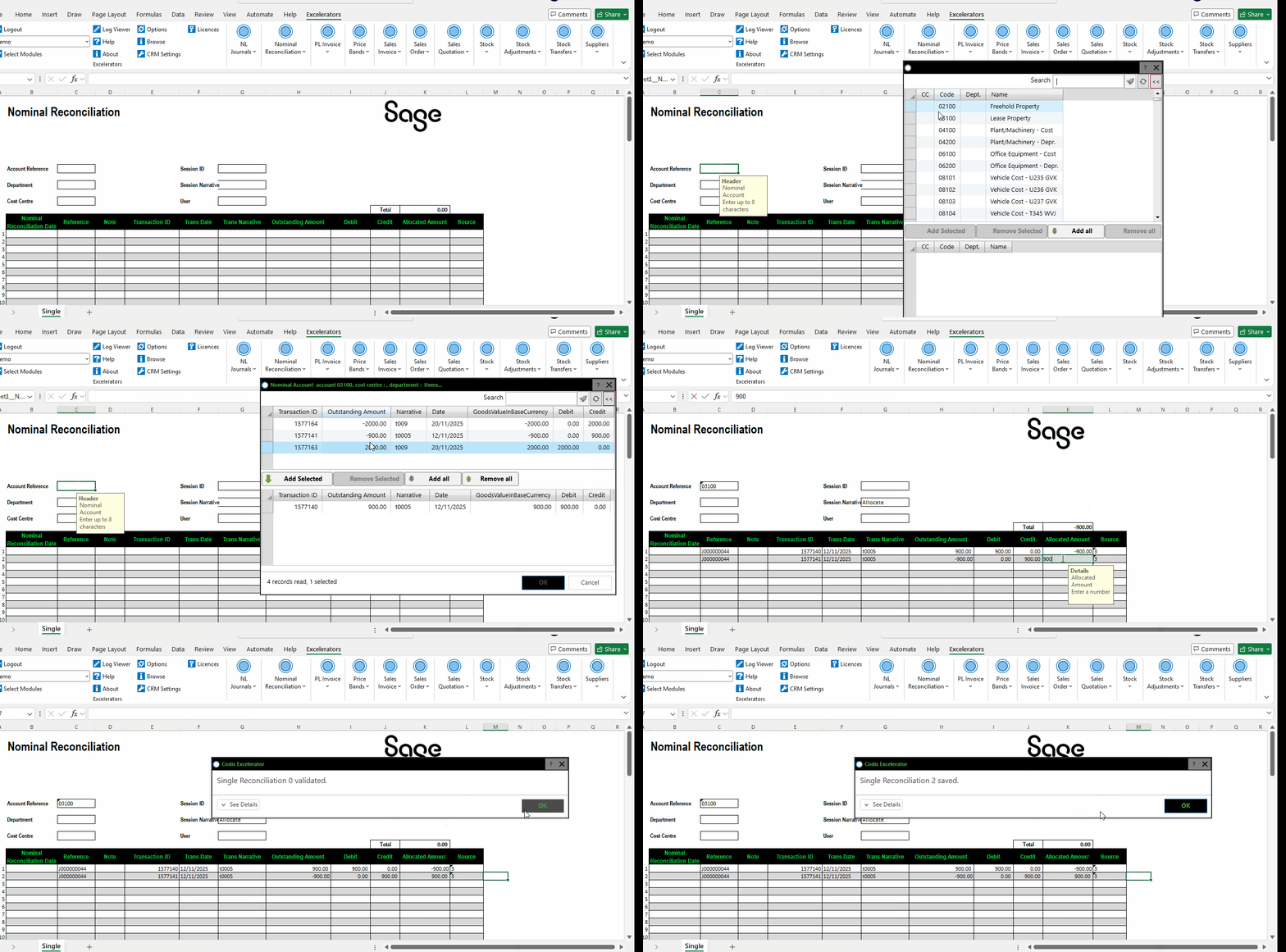
Entering the Allocated Amount
Allocations are signed, so that the debits and credits you are matching cancel each other out:
- On a debit transaction, enter the Allocated Amount as a negative value.
- On a credit transaction, enter the Allocated Amount as a positive value.
For example, to match a debit of 1,000.00 against a credit of 1,000.00, enter -1000.00 against the debit line and 1000.00 against the credit line.
Warning
The allocated amounts in a session must add up to zero, so the signs must be entered as described above.
You can allocate part of a transaction, but the amount you allocate cannot be greater than that transaction's outstanding amount.
If an amount is entered with the wrong sign, Validate and Save to Sage report the transaction that needs correcting, for example "Debit allocation amount should be negative for transaction ID : 99925".
You may want to Validate Sage Data before you save. Use the Save to Sage button to save the data.
Downloads
Allocated Sessions
This download will display a selection window listing all the Nominal Codes. Choose the nominal code and then select allocated sessions to download on to the worksheet.
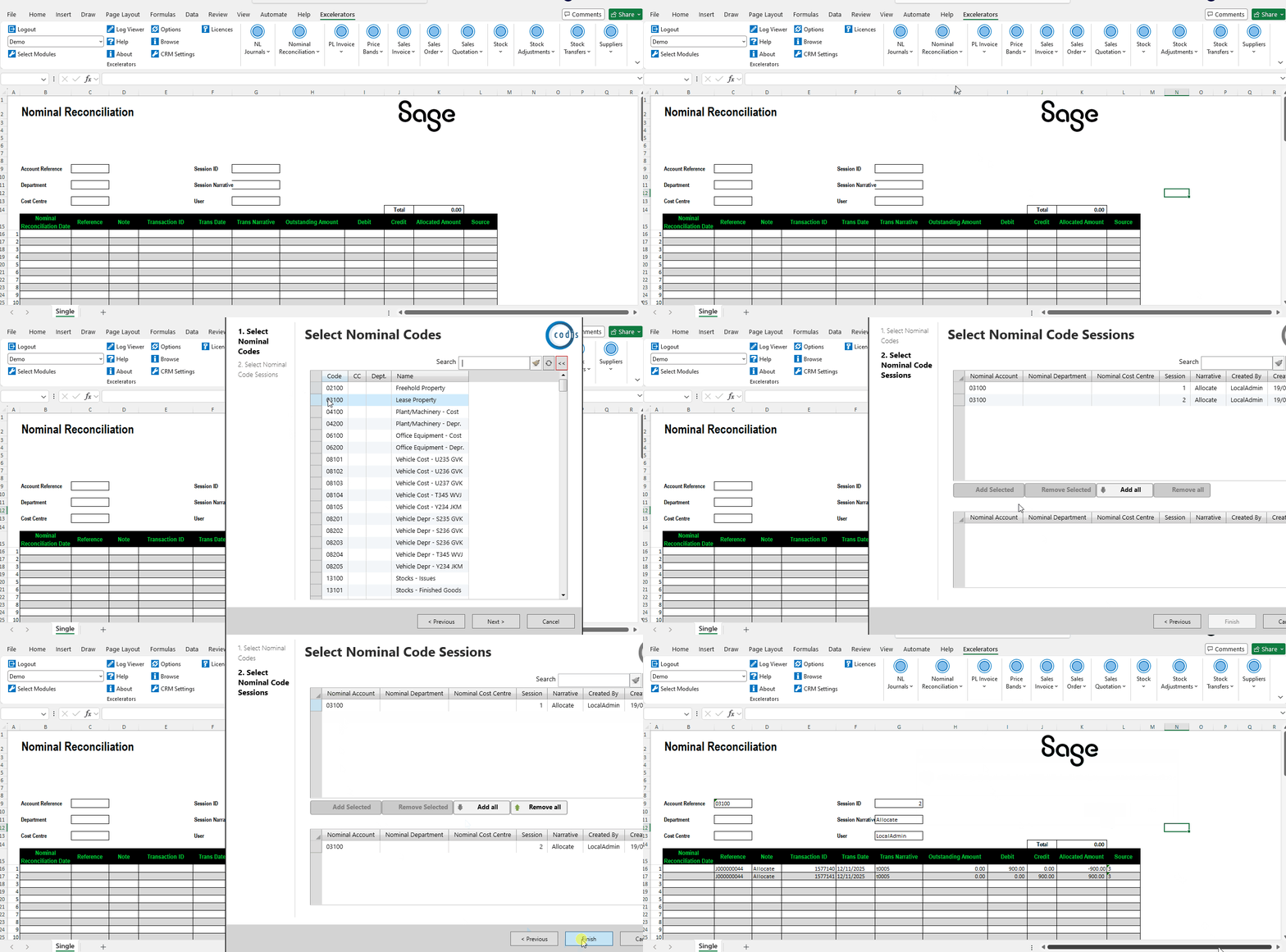
See Browse/Download Sage Data for general help on using this feature's browse.