Sales Receipts, Payments and Allocations
Introduction
Sales Receipts and Allocations Excelerator allows the entry of Sage 200 Sales Receipts and Allocations from Excel.
Features include:
- Sales Receipts and Payments can be made against single or multiple customers from a single worksheet.
- Receipts and Payments can be allocated as they are being entered.
- Allocations can be made independently of the receipt or payment.
Please see this Quick Tutorial. (This tutorial is made on an earlier version of Sales Receipts and Allocations.)
If you wish to create Sales Receipts or allocate them, you must include the bank code. If you just want to allocate items, then you should not include a bank code.
Warning
A maximum of 2100 allocations can be made for a receipt.
Standard Templates
Codis provides the template S200SLReceiptsTemplate.xlsx. You can, of course, amend this template or create your own. (See Designing Templates.)
The S200SLReceiptsTemplate.xlsx includes sheets which allow:
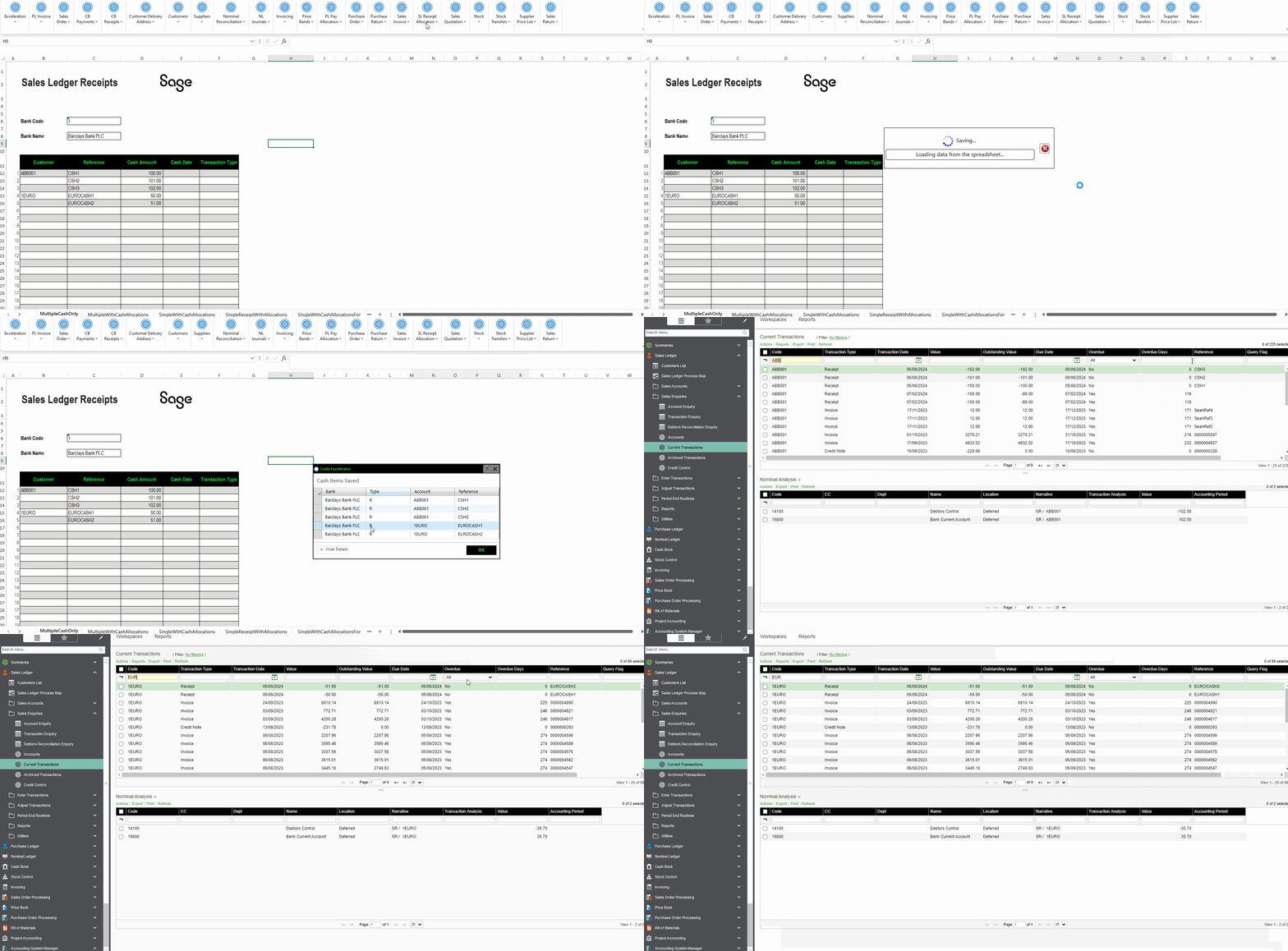
- MultipleCashOnly – Entry of multiple sales ledger receipts in a single worksheet (cash only, without allocations).
- MultipleWithCashAllocations – Entry of multiple sales ledger receipts in a worksheet, with allocation options.
- SingleWithCashAllocations – A single sales ledger receipt with multiple allocations.
- SingleCustomer – Entry of multiple sales ledger receipts for a single customer, with the customer entered once in the header.
- AllocationsOnly – For allocation of existing sales ledger receipts to existing invoices.
- AllocationsOnlyWithSession – As AllocationsOnly, with a Session column that groups the rows into one allocation per session, and the source transaction columns described below.
- AllocationsSingleCustomer – As AllocationsOnly, for a single customer entered once in the header, with a Session column that groups the rows into one allocation per session.
The sheets that create cash items enter receipts. To enter payments, add the Transaction Type range to the sheet (see Entering Receipts and Payments).
Options
Don't Clear Header Ranges
This option controls whether single-cell ranges (those generally at the head of the spreadsheet) will be cleared when the Clear button is clicked.
This can be useful if you want to keep header information when, for instance, entering a series of single receipts for the same customer.
Download Outstanding Items on Account Selection
This option sets whether to download outstanding invoices on account selection on the template.
Bank Charges Array Size
This option is used to define the number of bank charges on the template.
Ignore Allocations Having Zero Gross Amount
This option is used to ignore those allocations which have zero Gross Amount in process.
Entering Cash Items
Overview
As with other Excelerators, you can use the default template (S200SLReceiptsTemplate.xlsx) or create your own.
You can:
- Create receipts and payments without allocating them.
- Create receipts and payments and allocate them at the same time.
- Allocate open Sales Ledger items against one another.
Info
Do not include bank and receipt details in your template if you do not need to generate receipts or payments and only want to allocate.
The AllocationsOnly, AllocationsOnlyWithSession and AllocationsSingleCustomer sheets in the standard template are specifically designed for entering allocations only.
Entering Receipts and Payments
If you want to enter payments, use the Transaction Type range on your template and enter "P" or "PAYMENT" in this range.
You can enter multiple Sales Ledger receipts and/or payments into a single sheet.
Entering Allocations with Cash Items
You can allocate Sales Ledger cash items (receipts or payments) at the same time as creating them.
When entering allocation amounts in Excelerator, it is important to use the correct sign for each type of transaction:
- Invoices – Enter the value as a positive figure.
- Cash receipts – Enter the value as a negative figure.
- Credit notes – Enter the value as a negative figure.
This ensures that allocations are calculated correctly and balances reflect the true outstanding amounts. Entering the wrong sign may result in incorrect allocations or mismatched balances.
The item to be allocated can be specified using the item reference, and/or the second reference, or the item URN (Unique Reference Number).
Info
Item references are not guaranteed to be unique. URNs (Unique Reference Numbers) are a more reliable way of specifying which item to allocate.
The Allocation Tool
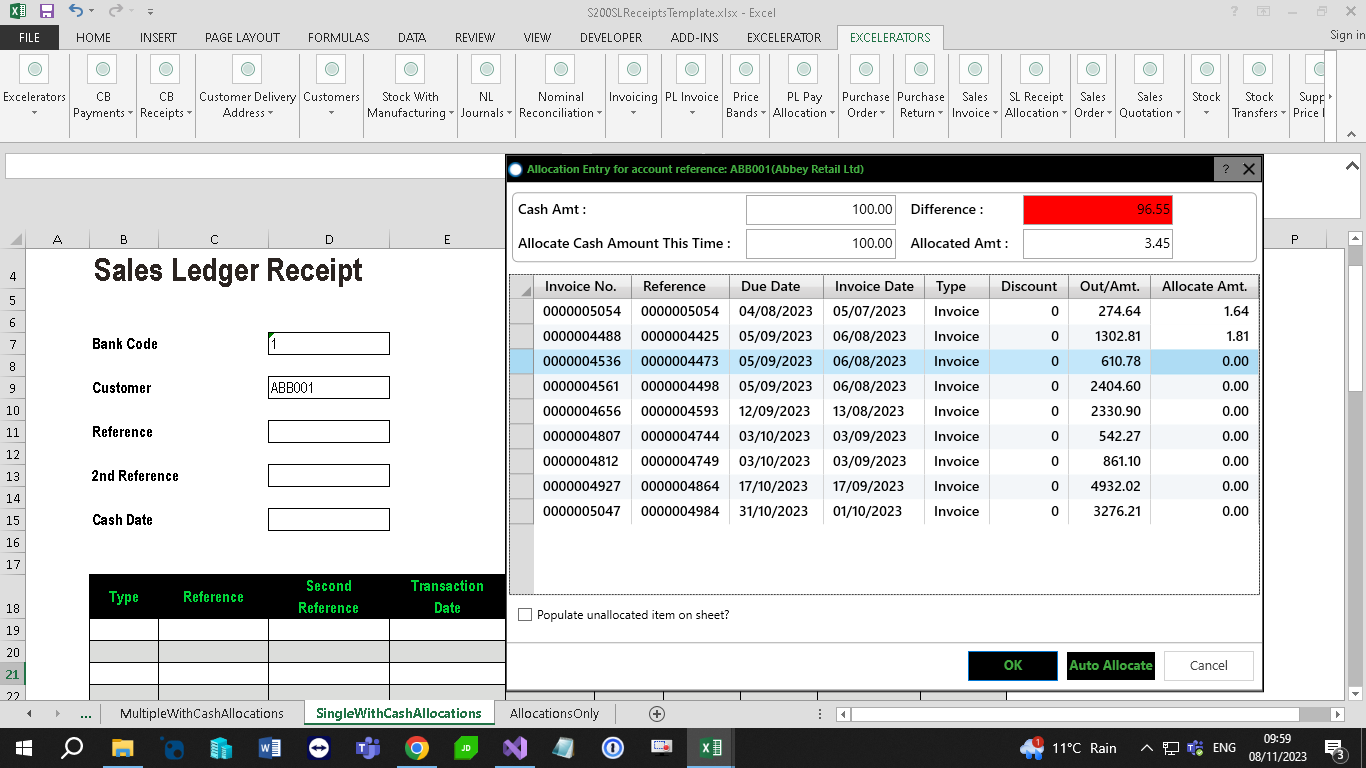
This ribbon feature is used to allocate outstanding items of a selected customer.
To allocate an item either:
- Enter the amount manually in the 'Allocate Amt.' field.
- Double-click on an item. This will fully allocate the outstanding amount. If there is already an allocated amount entered, double-clicking will unallocate.
- Use the 'Auto Allocate' button.
Source Transaction Details
Three download-only ranges bring through details of the sales order that generated each outstanding item, so that a receipt can be tied back to what the customer thinks they are paying for.
| Range | Notes |
|---|---|
| Customer Order No. | The customer's own order reference, taken from the sales invoice. |
| Order No. | The sales order number. |
| Order Date | The sales order's document date. |
These ranges are filled in when you download and are not saved back to Sage.
Info
Many items legitimately have no sales order behind them – invoices entered by hand, opening balances, and payments on account. These download with all three columns blank. That is not an error.
The details are only looked up when at least one of the three ranges is present on your worksheet, so downloads are unaffected if you do not use them.
In the supplied template these columns appear on the AllocationsOnlyWithSession sheet.