Suppliers
Introduction
Suppliers Excelerator allows Sage 200 Suppliers to be added and amended.
Features include:
- Suppliers' records can be created or amended individually or in bulk.
- Existing supplier records can be downloaded and amended.
- Existing supplier record can be deleted if it is not used in any of the transaction(s).
- Browse Sage data and pick from browse to enter on the sheet.
- Ability to print existing Purchase Ledger Aged Creditors report directly from Excel.
Please see our Quick Tutorial on importing suppliers into Sage from Excel.
To use this Excelerator, you must have permission to use the "Enter Supplier Account Details" to add suppliers and "Amend Supplier Account Details" to amend suppliers.
Info
To use Suppliers Excelerator, the user must have access to the following features in Sage:
- Enter Supplier Account Details
- Amend Supplier Account Details
See also: Sage 200 Configuration
Standard Templates
Codis provides the template S200SupplierTemplate.xlsx. You can, of course, amend this template or create your own. (See Designing Templates ).
The S200SupplierTemplate.xlsx includes sheets which allow:
- Single - Entry of a single supplier.
- Multiple - Entry of multiple suppliers.
Options
Save Validated Items Immediately?
This option determines how Excelerator saves suppliers from the Save option.
If it is not ticked, Excelerator will validate the entire sheet and save it if all suppliers are valid.
If it is ticked, Excelerator will validate one supplier, save it if valid, and move on to the next supplier.
Do Not Ignore Blank Ranges?
This option controls how Excelerator treats blank cells in ranges.
If this is not ticked, then blank cells will be ignored. This means:
- Existing values will not be overwritten when updating.
- Blank is not validated as a valid value. (There are a few values like some address fields where blank is valid.)
- A default value will be generated when saving a new record.
If this is ticked, then blank cells will not be ignored. This means:
- Existing values will be overwritten when updating.
- Blank is validated as a valid value.
- A default value will not be generated when saving a new record.
Maintain Contact Order as on the Sheet?
Allow Duplicate Codes on the Sheet?
Excelerator will validate if the same supplier code is entered more than once on the sheet. If this option is ticked, duplicate codes will be allowed.
Transaction Size
If this option is set to 0 (the default), Excelerator saves on an all-or-nothing basis. It attempts to save all the suppliers on the worksheet but saves none if an error is encountered.
This allows the worksheet to be corrected and a save attempted again without saved records being removed.
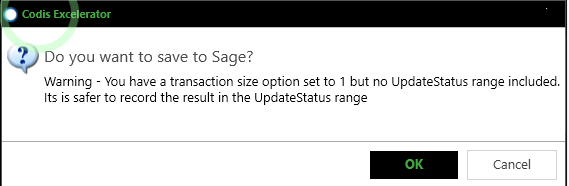
If set to a positive integer, the Transaction Size is the number of suppliers saved in one batch. All suppliers within this batch will be saved if all are valid or if none are. This should only be set to nonzero if you use the "Status from Save, Validation or Delete" range to track which suppliers have successfully been saved. If you don't include this range, you will be warned:
See Partial Validation and Saving of Data on a Sheet
Only Process Unsaved?
Used in conjunction with the "Status from…" range. If this option is ticked, invoices with "Saved" in the Status range will be ignored when validating. This can save time when validating larger datasets.
See Partial Validation and Saving of Data on a Sheet
Only Process Invalidated?
Used in conjunction with the "Status from…" range. If this option is ticked, invoices with "Valid" in the Status range will be ignored when validating. This can save time when validating larger datasets.
See Partial Validation and Saving of Data on a Sheet
Continue save After Error?
If this option is ticked, Excelerator will continue trying to save invoices after errors are found with other suppliers.
See Partial Validation and Saving of Data on a Sheet
Update Existing External IDs?
This option applies when Using Excelerator To Import Data and tracking external IDs. If not ticked, if an external ID is found on the import that already exists, there will be a validation failure. Otherwise, the supplier data will be treated as an update to the existing supplier.
Printing
This feature prints the "Purchase Ledger Aged Creditors Report (Detailed)" report for the suppliers on the sheet.
See also: Printing
Download
This feature lets you download existing Sage suppliers onto the Excel sheet for amendment.
Validate
Validate will check that the data on the spreadsheet is compatible with Sage accounting rules. It validates all the data and displays any errors in a new panel. Sage is not updated.
Info
Save also validates the data, but Validate will validate faster than Save. Also, it will attempt to report all errors in the data in one run, whilst Save will stop on the first error it finds. It can be more efficient to use Validate before Save because of these reasons.
Sage 200 Excelerator Suppliers Validation
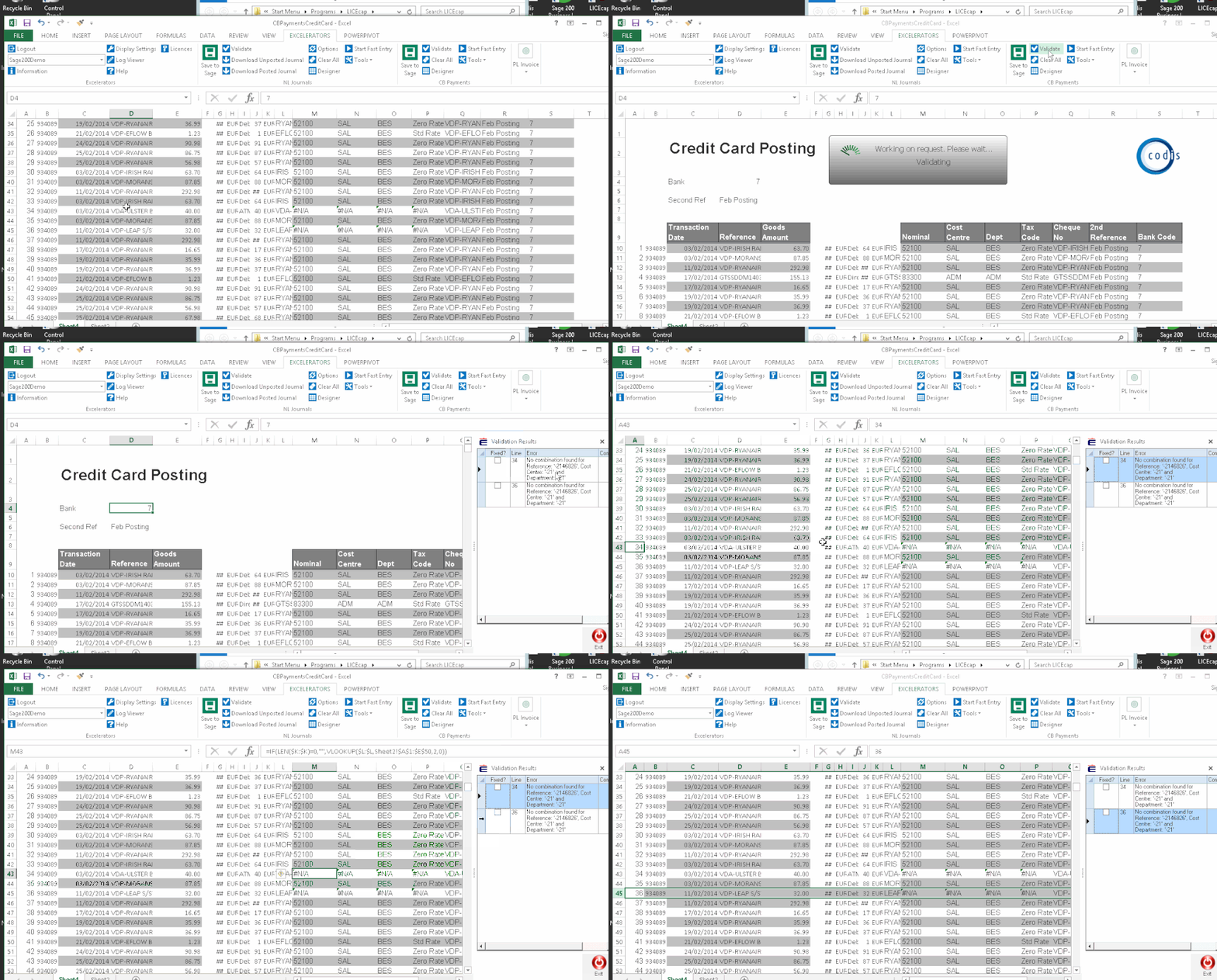
Validate lists any issues, the error description, and the line where the error occurred. By clicking next to the error, Excelerator takes you to the row in question.
To use, select Validate from the Ribbon for the relevant module. A panel is displayed listing all rows where Excelerator encountered problems.
Click next to the row to be directed to the row where Excelerator encountered the issue (see above).
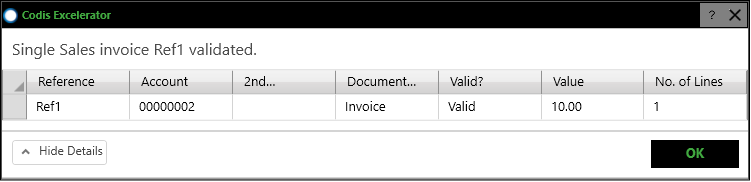
A box like this one appears when Validate encounters no errors, and the data is ready to Save to Sage.
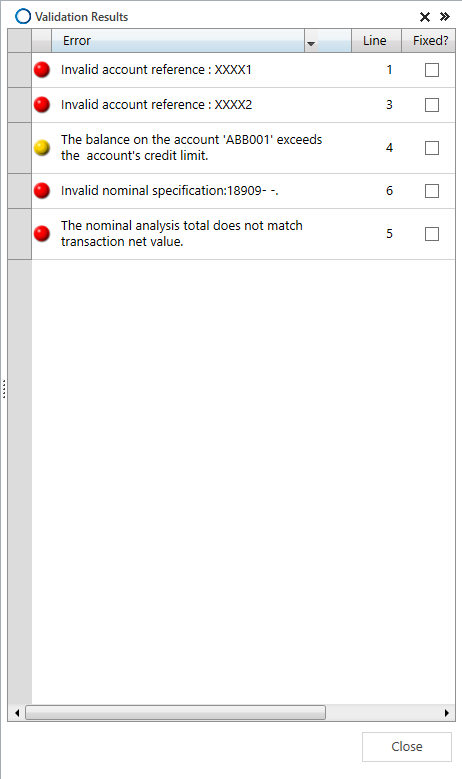
Any validation errors will be displayed in the Validation panel, as shown below. Red light lines are errors, yellow are warnings.
Info
Ticking "Fixed" does not correct an error but acts as a reminder that the error has been corrected.
Mirror Ranges
Mirror ranges are ranges that mirror the ranges used to update the suppliers. They are populated by the download, populate or browse features, ad are read-only.
They can be used to provide a copy of supplier data before any updates are made and can by used by formula in the updatable ranges.
Deleting Suppliers
Changed in version 3.5.601
Prior to this version, the right-click delete option would only delete a single supplier and the suppliers to be deleted were not listed.
Warning
The "Delete" feature enable you to delete all the suppliers present on the worksheet.
Please note that only the suppliers that can be deleted according to Sage business rules will be removed.
There are two ways to delete suppliers: from the ribbon menu, which deletes all suppliers on the sheet, or by right-clicking to delete a specific selection.
Ribbon menu — Delete
Click Delete in the ribbon to delete all suppliers currently on the sheet.
A confirmation window will appear listing every supplier code that will be deleted. To proceed, type DELETE in the confirmation box and click OK. Click Cancel to abort without making any changes.
Once confirmed, each supplier is deleted in turn. A results window is then displayed showing the outcome for each record, including any that could not be deleted and the reason why.
Right-click — Delete Supplier
Select one or more rows on the sheet by clicking and dragging, or by holding Ctrl and clicking individual rows. Right-click the selection and choose Delete Supplier.
- Single supplier — a simple Yes/No confirmation is shown before proceeding. There are two ways to delete suppliers: from the ribbon menu, which deletes all suppliers on the sheet, or by right-clicking to delete a specific selection.
- Multiple suppliers — a confirmation window lists all selected supplier codes. Type DELETE in the confirmation box and click OK to proceed, or Cancel to abort.
Populate
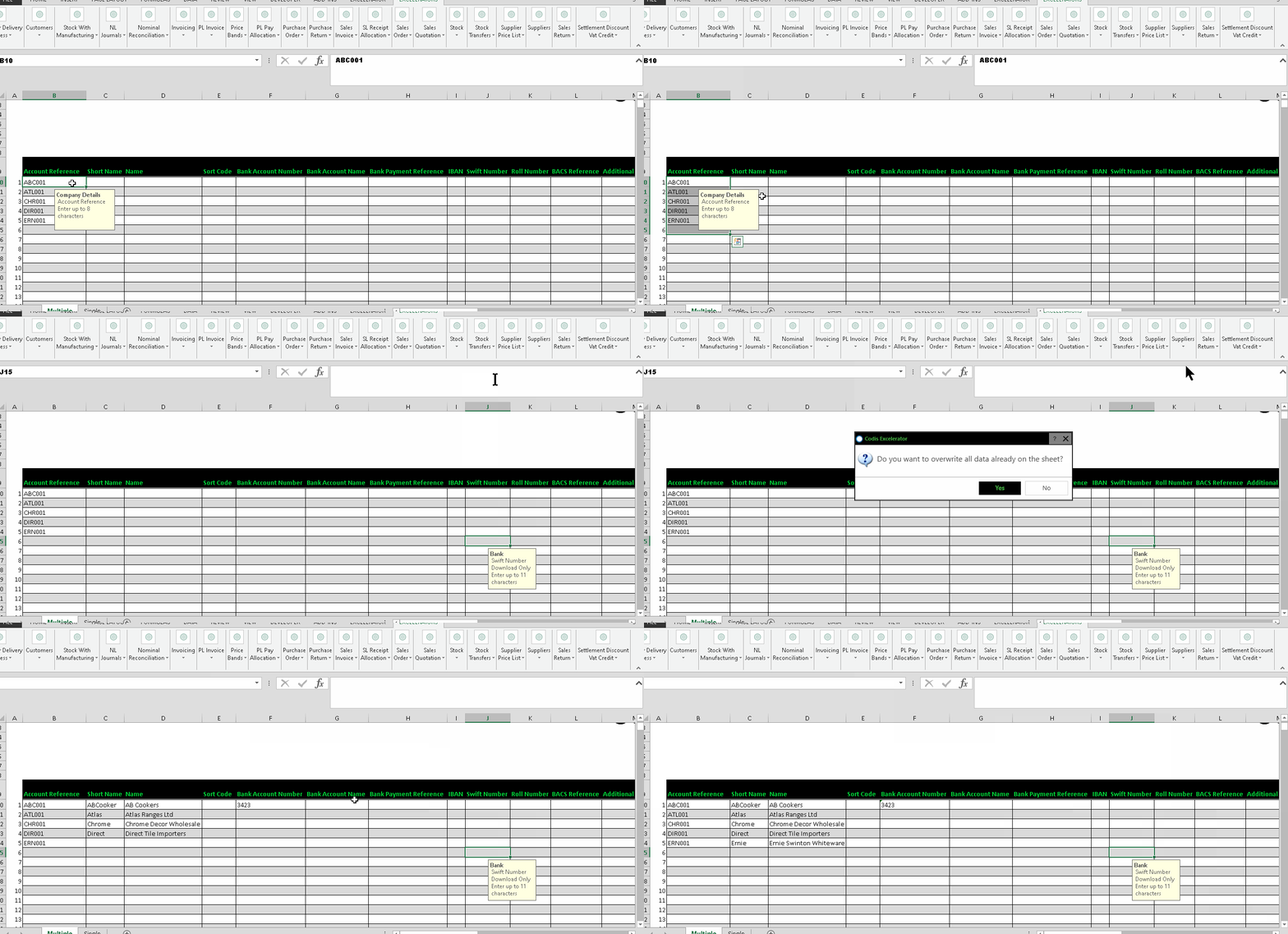
When you have one or more Supplier code(s) already entered on the sheet, and you want to bring all related details, select the 'Populate 'menu option as shown below:
Attachments
New in version 3.5.605
Excelerator supports the saving, amendment and deletion of attachments.
Info
- You cannot save links to attachments or folders.
- If you want to change an attachment, a file URI will only be considered changed if the file name (not the path) changes.
- Saving a large number of large files may be slow.
- On a new record, fill the attachment rows from the top with no gaps. A blank URI followed by a non-blank URI below it will be rejected on validation. (On an existing record, a blank row is allowed and is treated as "delete the attachment at that position".)
- Every attachment row needs a file URI. A blank URI with text in the Description column is rejected.
Warning
Saving a blank URI will delete an existing attachment (a warning will be displayed).
To maintain attachments using Excelerator, add the attachment ranges to your worksheet. Enter a URI and a description for each of the attachments.
You can set the number of attachments you want to maintain by changing the size of the attachment ranges in the options.