Purchase Payments and Allocations
Introduction
Purchase Payments and Allocations Excel add-in allows the entry of Sage 200 Supplier Payments and Allocations from Excel.
Features include:
- Purchase Ledger Payments can be made against single or multiple suppliers from a single worksheet.
- Payments can be allocated as they are being entered.
- Allocations can be made independently of the payment.
Please see this Quick Tutorial. (This tutorial is made on an earlier version of Purchase Payments and Allocations.)
If you wish to create Purchase Payments or allocate them, you must include the bank code. If you just want to allocate items, then you should not include a bank code.
Warning
A maximum of 2100 allocations can be made for a payment.
Standard Templates
Codis provides the template S200PLPaymentTemplate.xlsx. You can, of course, amend this template or create your own. (See Designing Templates.)
The S200PLPaymentTemplate.xlsx includes sheets which allow:
- Single – Entry of a single purchase ledger payment in a worksheet.
- Multiple – Entry of multiple purchase ledger payments in a worksheet, with allocation options.
- AllocationsOnly – For allocation of existing purchase ledger payments to existing invoices.
Options
Don't Clear Header Ranges
This option controls whether single-cell ranges (those generally at the head of the spreadsheet) will be cleared when the Clear button is clicked.
This can be useful if you want to keep header information when, for instance, entering a series of payments for the same supplier.
Download Outstanding Items on Account Selection
This option sets whether to download outstanding invoices on account selection on the template.
Bank Charges Array Size
This option is used to define the number of bank charges on the template.
Ignore Allocations Having Zero Gross Amount
This option is used to ignore those allocations which have zero Gross Amount in process.
Entering Payment Items
As with other Excelerators, you can use the default template (S200PLPaymentTemplate.xlsx) or create your own.
You can:
- Create payments without allocating them.
- Create payments and allocate them at the same time.
- Allocate open Purchase Ledger items against one another.
Info
Do not include bank and payment details in your template if you do not need to generate payments and only want to allocate.
The AllocationsOnly sheet in the standard template is specifically designed for entering allocations only.
Entering Payments
If you want to enter payments, use the Transaction Type range on your template and enter "P" or "PAYMENT" in this range.
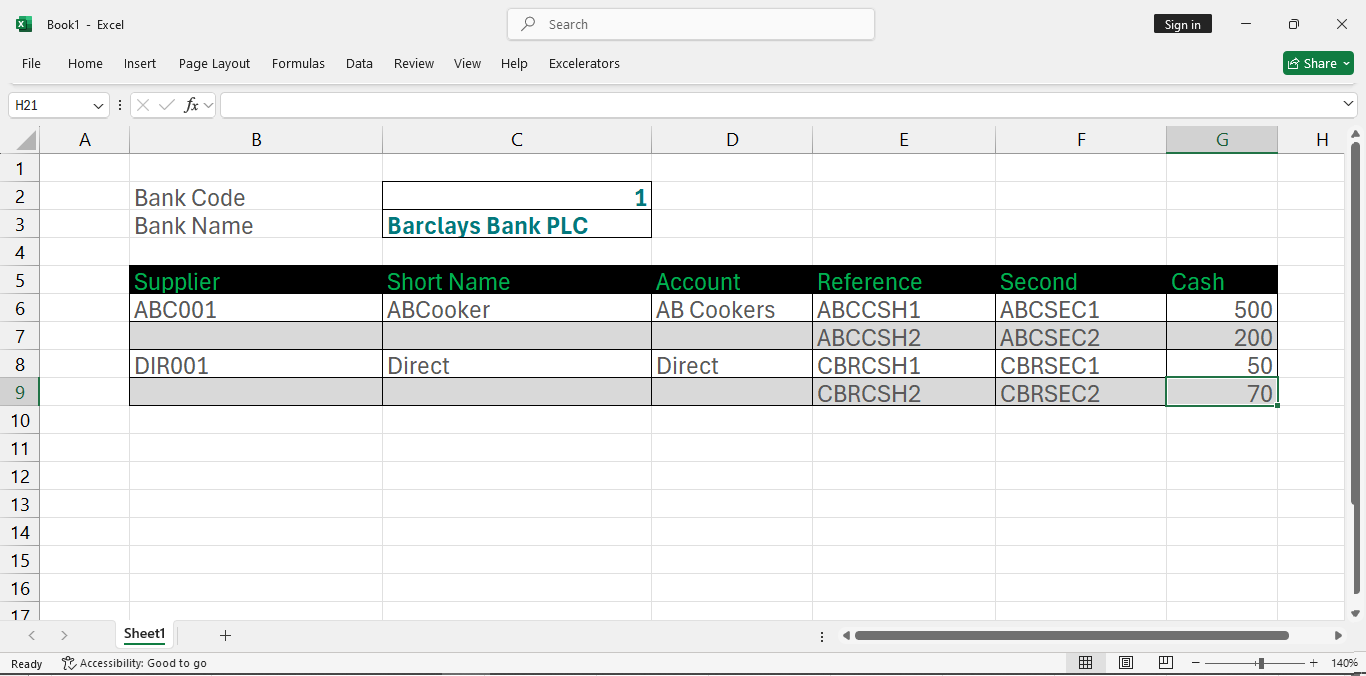
You can enter multiple Purchase Ledger payments into a single sheet.
Entering Allocations with Payment Items
You can allocate Purchase Ledger payments at the same time as creating them.
When entering allocation amounts in Excelerator, it is important to use the correct sign for each type of transaction:
- Invoices – Enter the value as a positive figure.
- Payments – Enter the value as a negative figure.
- Credit notes – Enter the value as a negative figure.
This ensures that allocations are calculated correctly and balances reflect the true outstanding amounts. Entering the wrong sign may result in incorrect allocations or mismatched balances.
The item to be allocated can be specified using the item reference, and/or the second reference, or the item URN (Unique Reference Number).
Info
Item references are not guaranteed to be unique. URNs (Unique Reference Numbers) are a more reliable way of specifying which item to allocate.
The Allocation Tool
This ribbon feature is used to allocate outstanding items of a selected supplier.
To allocate an item either:
- Enter the amount manually in the 'Allocate Amt.' field.
- Double-click on an item. This will fully allocate the outstanding amount. If there is already an allocated amount entered, double-clicking will unallocate.
- Use the 'Auto Allocate' button.
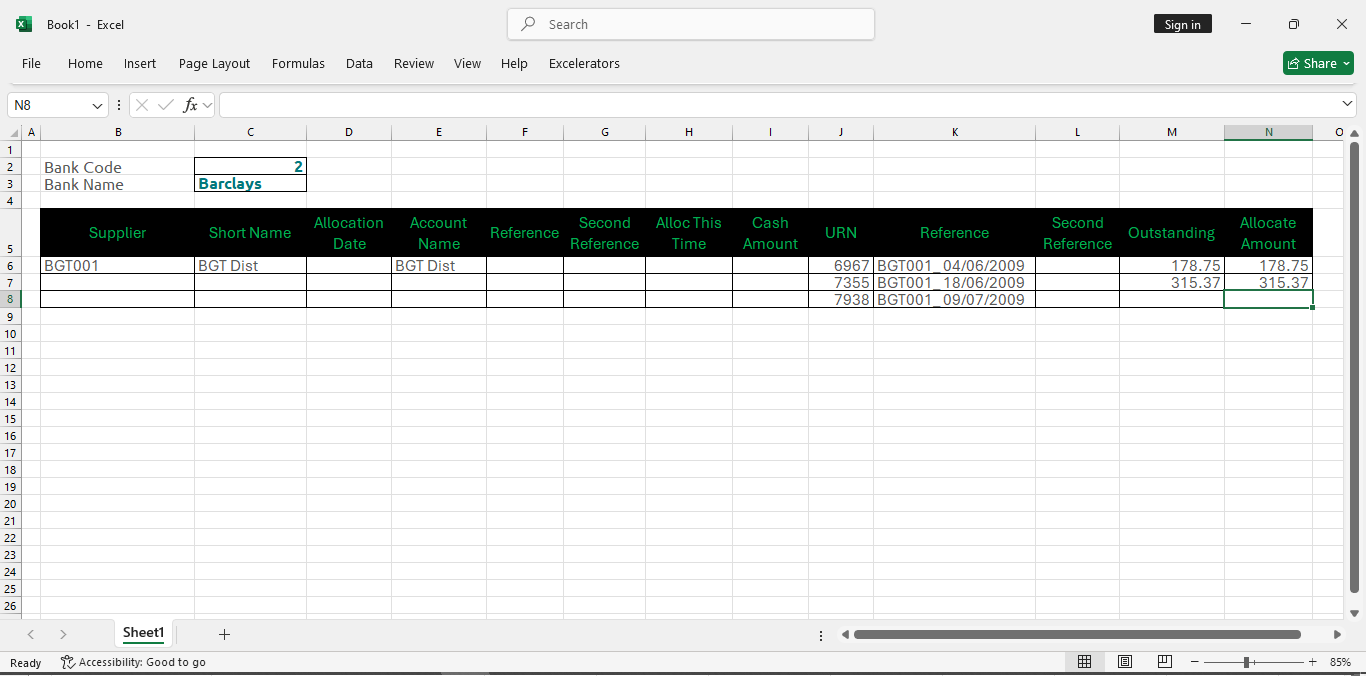
Entering Allocations Without Creating a Payment Item
Allocations without the creation of a payment item are done in a single set of columns. Note that in this mode, both credits and debits are available from the browse, and that debits appear as negatives.