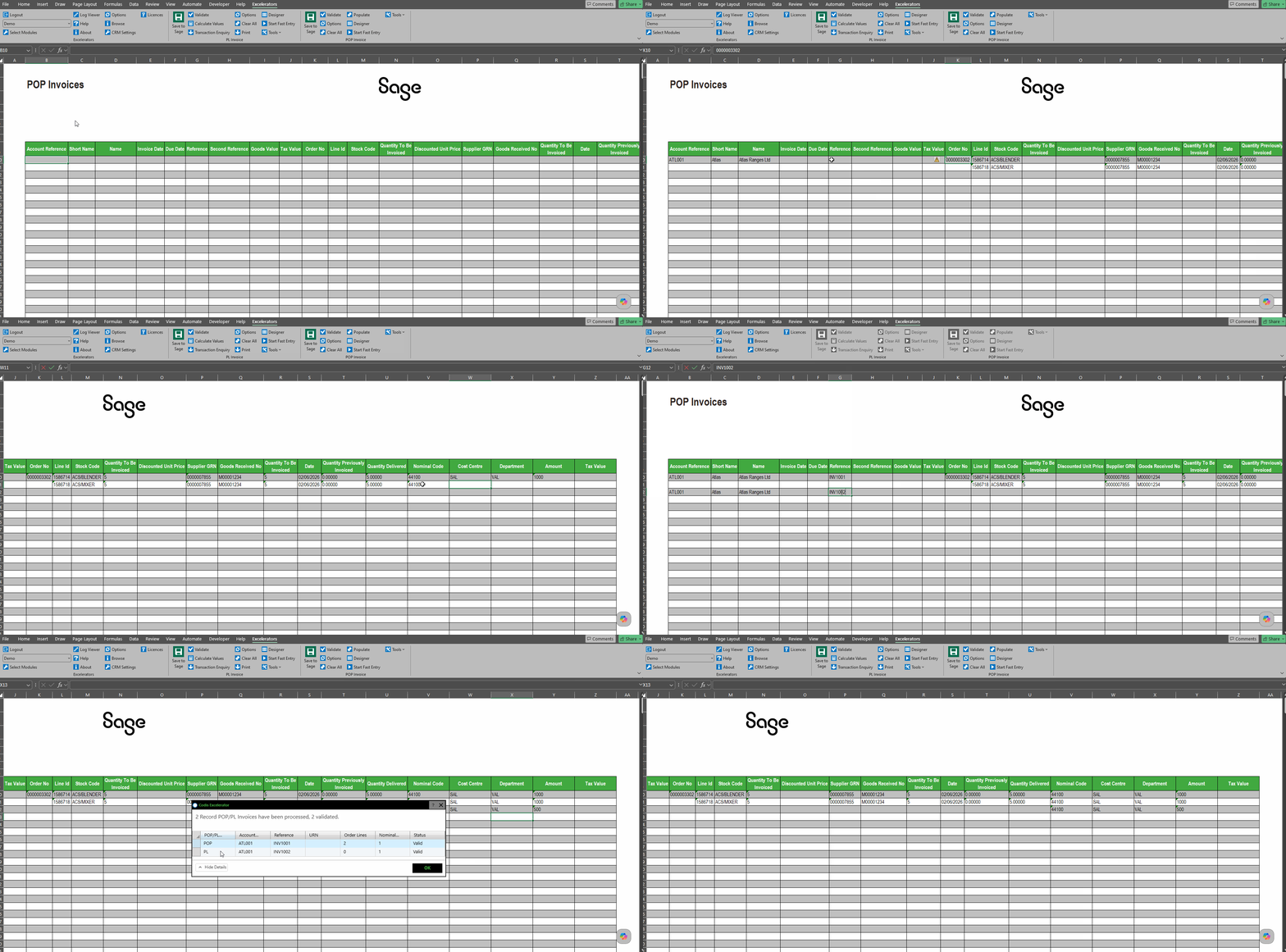
POP Invoices
Introduction
POP Invoices Excelerator
The POP Invoices Excelerator developed by Codis enables the easy recording of Sage 200 Purchase Order Processing (POP) Invoices from Excel. This tool allow record, match, and log supplier purchase invoices directly against outstanding Purchase Orders (POs) and Goods Received Notes (GRNs) from within Excel.
This tool offers various features, such as:
- Entry of single or multiple POP invoices on a single sheet.
- Browse Sage data and pick from browse to enter on the sheet.
- Support for project accounting
- Optional extended validation to check for duplicate references.
Info
To record POP Invoices using Record POP Invoices Excelerator, the user must have access to the "Record Purchase Invoices" feature in Sage.
See also: Sage 200 Configuration
Standard templates
Templates are working examples of Excel worksheets for use with Excelerator. You can use the standard templates as they are, amend them using the Template Designer, or create your own templates from scratch.
Codis provides a single template workbook: S200POPInvoiceTemplate.xlsx.
This workbook has two worksheets:
Default Nominals This worksheet is used when nominal accounts for the invoice are not manually entered, allowing Excelerator to automatically pick Sage’s default values.
Override Nominals This worksheet is used for processing bulk batches across rows, where each invoice line requires a specifically designated nominal account.
Options
Don't Clear Header Ranges
If this is ticked, when the Clear All menu option is selected, the header ranges (single cell ranges) will not be cleared.
Check for Reference Duplication
Similar to other Excelerators, options include:
- NoCheck
- Warning
- Disallow
If Warning or Disallow are selected, Excelerator will check for duplicate invoice references.
Tracking Saved and Valid Data Options
See Tracking Saved and Valid Data Options
Populate Nominal Code After Account Browse?
If this is ticked, then when browsing on suppliers, Excelerator will populate the first line of the nominal analysis of the invoice with the default revenue code for the selected supplier.
Recording POP Invoices
You can record POP invoices in the Standard templates supplied with Excelerator or design your own.
You can record a single POP invoice or multiple POP invoices in a single worksheet.
You may want to Validate Sage Data before you save. Use the Save to Sage button to save the data.
It is populated with calculated data after the save.
Default Data
As with all Excelerators, POP Invoice Excelerator will try to use default values where none are entered.
Recording POP Invoice
In the standard template, to enter a new invoice:
- Select the supplier by either browsing or manually entering the details.
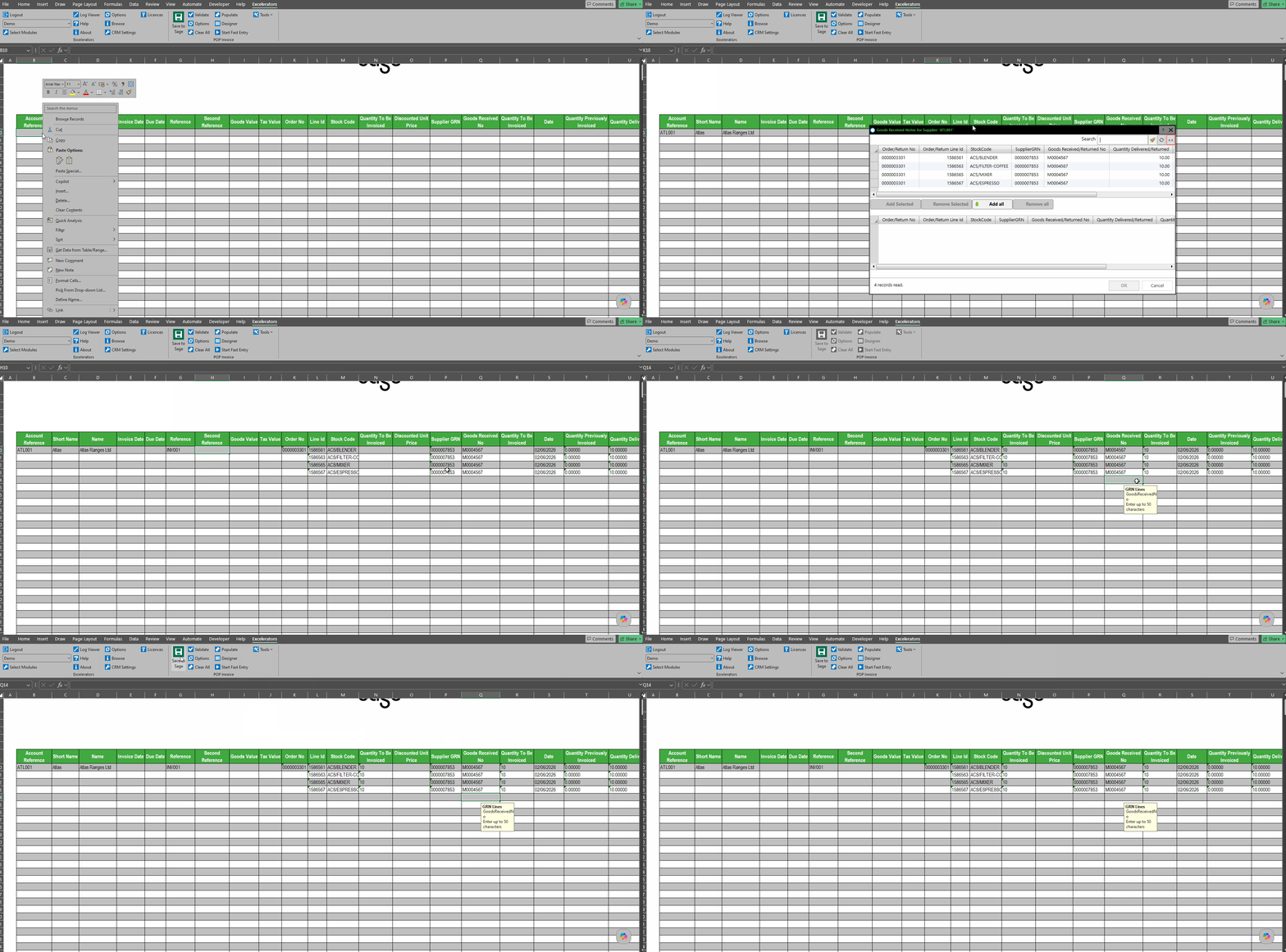
- When browsing for an order number, the system displays all available orders for that specific supplier, allowing you to select multiple lines at once.
- Once selected, Excelerator fetches the preloaded data into the spreadsheet for those lines.
- You must update the "Quantity to be Invoiced" for both the order-level and GRN-level ranges, ensuring they accurately match.
- If you update the discounted unit price, it will become the new unit price for the invoice; if left unchanged, Excelerator defaults to the original values from the order.
You can enter multiple lines for an invoice either by repeating the invoice header information for each line or leaving the invoice data blank. In the latter case, Excelerator will assume that any further lines are for the same invoice.
Recording Credit Notes
You can record a Credit Note using the "Type" range and enter "CreditNote" in this range. Enter positive values for credit notes. An invoice will be generated if the "Type" range is not included or left blank.
Entering Project Accounting POP Transactions
Project analysis for POP invoices can be entered into detail ranges in Excelerator. You can combine the entry of the project analysis with the nominal analysis or just enter the project analysis, in which case the default expense code for the project item will be used.
Clear All
This menu option will clear down the data in the Excelerator ranges.
You can choose to just clear down the detail ranges by changing the "Don't Clear Header Ranges" under Options.
See also: Clear Excel Data.
Validating and Saving in Batches
See Tracking the Valid and Saved Status of Data on a Sheet
Ranges
If this range is included, it will be populated with the result of saves or validation.
Populate
The Populate menu button lets you download purchase order details onto the Excelerator worksheet.
Enter the order number in the order no range, and select the populate button. Supplier information and order lines will be fetched to the spreadsheet.
Info
You can enter multiple purchase orders in a sequence to retrieve details for all the orders in the spreadsheet.
Use Cases
Matching Invoices to Purchase Orders
This example demonstrates recording an invoice against a purchase order, ensuring accurate matching and updating of stock and financial records.
Multiple Module Usage
The POP Invoice template can optionally double as a Purchase Ledger (PL) invoice template if order details are omitted from the entry. To utilise this dual functionality, Purchase Invoices Module must be activated on the system.