Price Book Discounts
Introduction
Price Book Discounts Excelerator is a powerful tool that enable users to Set up stock item discount using Excel
It allows users to create discounts for individual stock items. You can set up discounts as a Percentage, Amount or Special Price and these can be set as flat rate or based on quantity.
Key Features
-
Create the discounts for your stock items, setup discounts as a percentage, Amount or Special Price.
-
Link the discount to a customer discount group
Getting Started
To get started with Price Book Discounts Excelerator, follow these steps:
1. General Excelerator Setup
Begin by completing the general Excelerator setup as described in the Getting Started guide. This includes installing the Excelerator add-in and configuring your connection to Sage 200.
2. Licensing
Ensure that your Price Book Discounts Excelerator module is licensed. Licensing details and activation steps can be found in the Licensing section.
Note
The module will not be available for use without a valid licence.
3. Enabling Permissions in Sage
Verify that your Sage 200 user account has the necessary permissions enabled:
- Discounts for Stock item
This permissions is required to access and create discount for Stock item through the Excelerator.
4. Accessing Price Book Discounts in Excel
Once setup and licensing are complete, open Excel. You will find the Price Book Discounts options on the Excel ribbon, typically under the "Excelerator" tab. From here, you can launch the Price Book Discounts features, create new discount and link discount to Customer Discount Group.
For more details on setup and troubleshooting, see Getting Started.
Standard Templates
Templates are working examples of Excel worksheets for use with Excelerator. You can use the standard templates as they are, amend them using the Template Designer, or create your own templates from scratch.
Codis provides a single template workbook S200PriceBookDiscountsTemplate.xlsx.
The S200PriceBookDiscountsTemplate.xlsx includes sheets which allow:
- Sheet1 - Entry of multiple discount on a worksheet with multiple stock items.
- OneDiscountName - Entry of multiple stock items with same discount.
- ReducedRanges -Entry of multiple stock items with same discount and same customer discount group .
- QuantityBreaksInHeader -Entry of multiple stock items with same quantity break discount .
- UnitPrices -Entry of multiple stock items for multiple flat rate discount .
Options
Don't Clear Header Ranges?
This option controls whether single-cell ranges (those generally at the head of the spreadsheet) will be cleared when the Clear button is clicked.
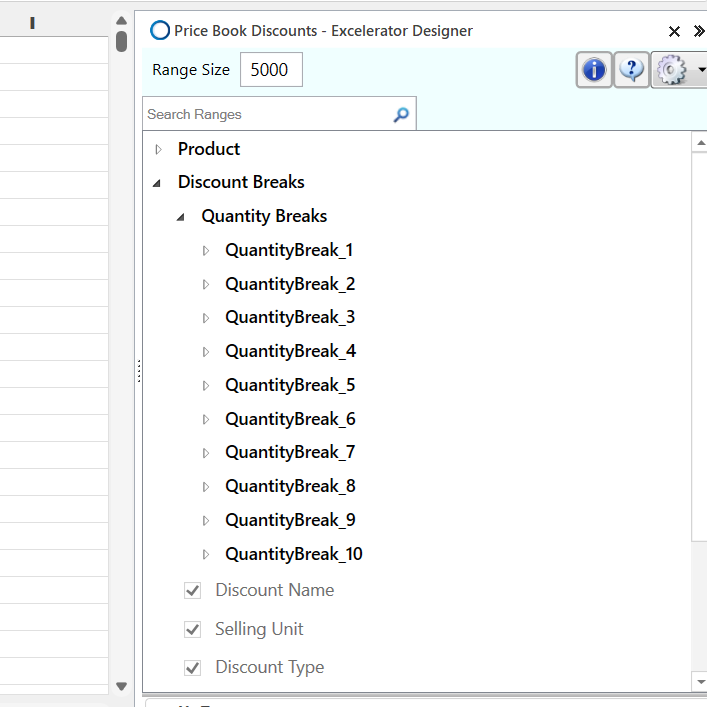
No of quantity breaks
This option determines the size of the array of additional Quantity Breaks ranges. This is set by default to 5.
If this option was changed to "10", then there will be ten sets of additional Quantity Break available in the designer, as shown below.
No of Customer Discount Group
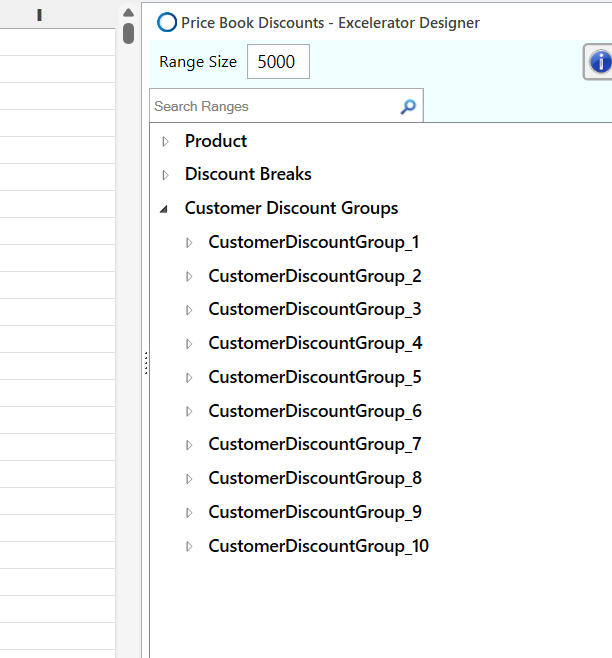
This option determines the size of the array of additional Customer Discount Group ranges. This is set by default to 5.
If this option was changed to "10", then there will be ten sets of additional Customer Discount Group available in the designer, as shown below.
Browses
Like other Excelerators, Price Book Discount Excelerator allows you to browse and download Sage data.
Download
You can download a discount associated with a stock item to amend or update.
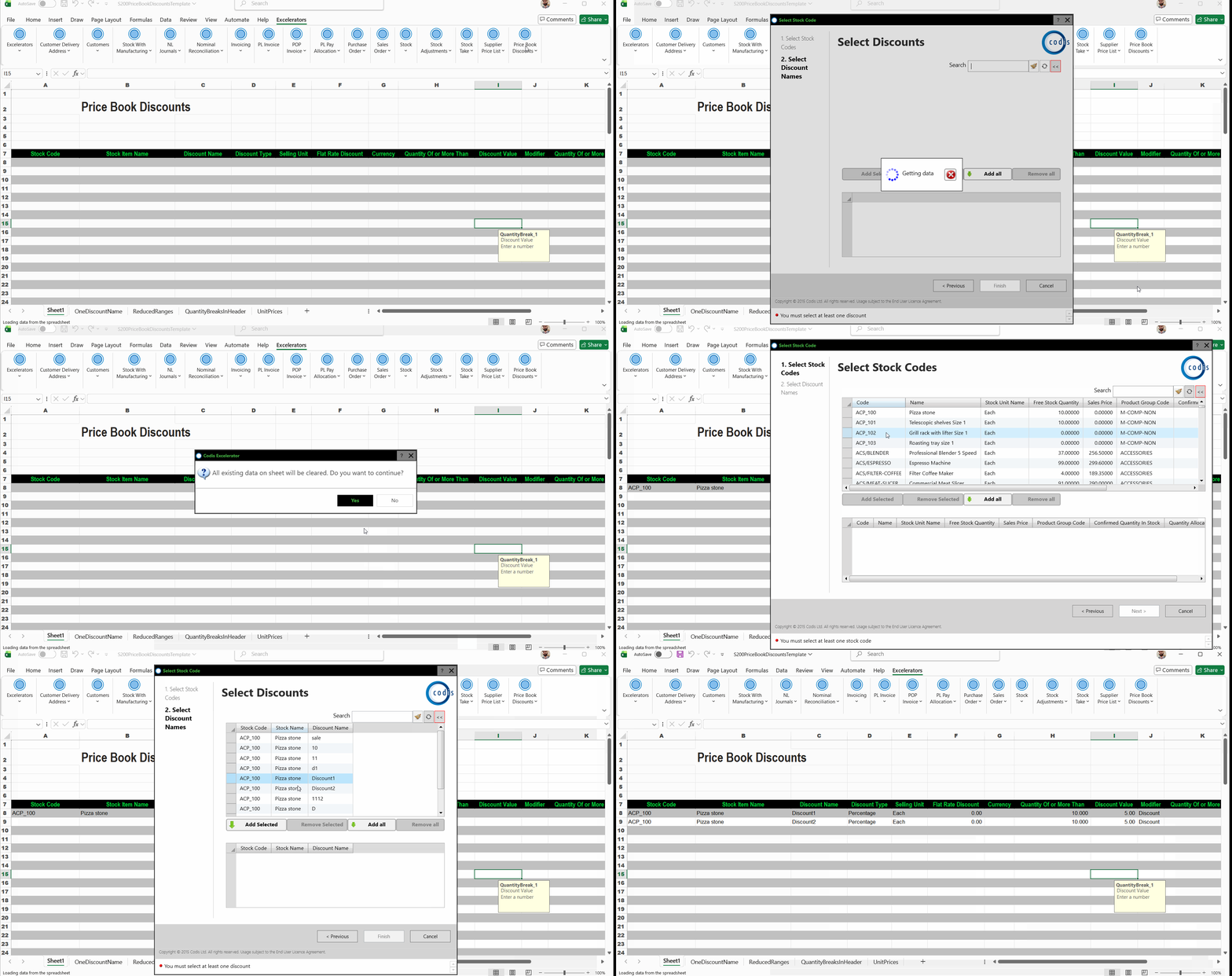
The first window in the download process allows you to select one or multiple Stock Codes. The second window lets you choose the associated discounts you want to include on the sheet.
Note
If you only need to download Stock details without discounts, you can use the ‘Select Stock’ option available in the PriceBookDiscounts ribbon.
The screenshot below shows how to download a Discount list.
Clear All
This menu option will clear down the data in the Excelerator ranges.
See also: Clear Excel Data.
Workflow
The typical workflow for using Price Book Discounts Excelerator is as follows:
-
Create or Download a discount for Stock item
Start by creating a new discount or downloading an existing one from Sage into Excel. -
Enter Discount Value
Update the existing discount details or enter new discount values -
Validate Data
Use the Excelerator validation features to check for errors or missing information before saving. -
Amend as Needed
Review the data and amend any discount values as necessary. -
Save and Upload to Sage
Once all values are correct and validated, save and upload the discount back to Sage 200. -
Clear Data (Optional)
Use the "Clear All" option to clear the worksheet ranges and prepare for a new discount upload process.
Creating and Amending a Discount
The screenshot below shows how to create a new discount for a stock item.
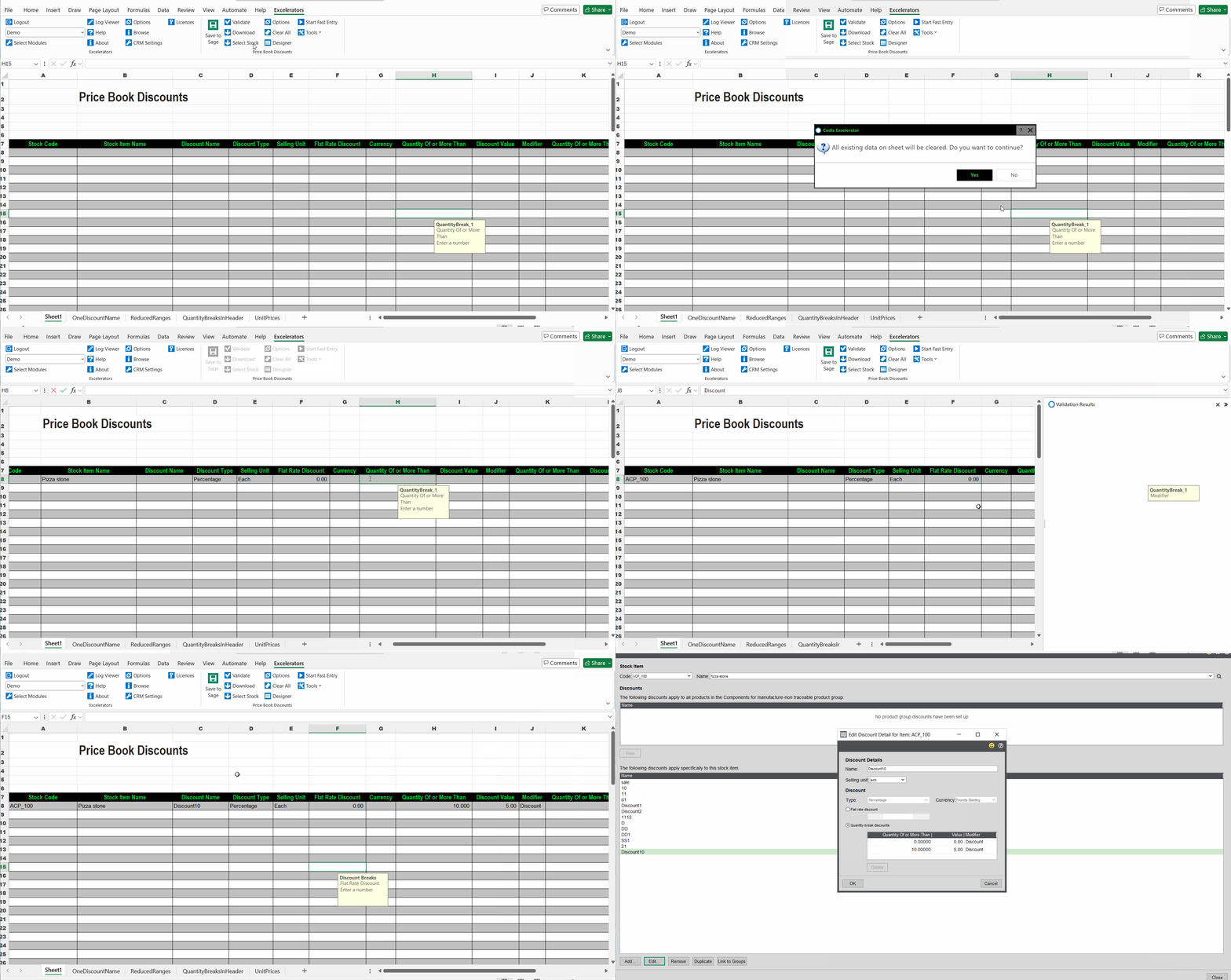
If you want to amend a existing discount, use Download and then save the changes back to Sage.